Stürzen wir uns nach fast einem Jahr der Pause in den Spaß. Beginnen wir mit der Serverkomponente und dort mit Sockets und Threads. Los geht’s.

Es ist noch viel zu tun. Packen wir es an. Wer Lust hat, mitzuhelfen, ist gerne eingeladen.
Stürzen wir uns nach fast einem Jahr der Pause in den Spaß. Beginnen wir mit der Serverkomponente und dort mit Sockets und Threads. Los geht’s.

Es ist noch viel zu tun. Packen wir es an. Wer Lust hat, mitzuhelfen, ist gerne eingeladen.
Um uns zu motivieren, schreiben wir in diesem Video unser erstes eigenes kleines Programm. Ihr könnt mal schauen, ob wxWidgets das Richtige für euch ist und schon, nach dem ersten Erfolgserlebnis, damit ein wenig herumspielen.

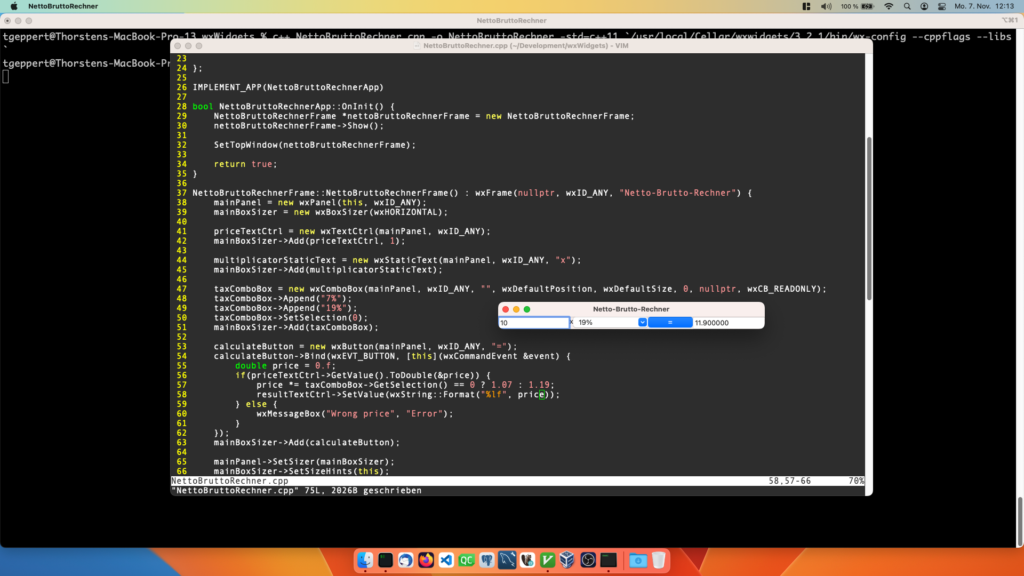
Und so sieht das Programm aus:

Hier noch der Quelltext:
#include <wx/wx.h>
class BruttoNettoApp : public wxApp {
public:
bool OnInit();
};
class BruttoNettoFrame : public wxFrame {
public:
BruttoNettoFrame();
private:
wxPanel *mainPanel;
wxBoxSizer *mainBoxSizer;
wxTextCtrl *priceTextCtrl;
wxStaticText *multiplicatorStaticText;
wxComboBox *taxComboBox;
wxButton *calculateButton;
wxTextCtrl *resultTextCtrl;
};
IMPLEMENT_APP(BruttoNettoApp)
bool BruttoNettoApp::OnInit() {
BruttoNettoFrame *bruttoNettoFrame = new BruttoNettoFrame;
bruttoNettoFrame->Show();
SetTopWindow(bruttoNettoFrame);
return true;
}
BruttoNettoFrame::BruttoNettoFrame() : wxFrame(nullptr, wxID_ANY, "Brutto-Netto-Rechner") {
mainPanel = new wxPanel(this, wxID_ANY);
mainBoxSizer = new wxBoxSizer(wxHORIZONTAL);
priceTextCtrl = new wxTextCtrl(mainPanel, wxID_ANY);
mainBoxSizer->Add(priceTextCtrl, 1);
multiplicatorStaticText = new wxStaticText(mainPanel, wxID_ANY, "x");
mainBoxSizer->Add(multiplicatorStaticText);
taxComboBox = new wxComboBox(mainPanel, wxID_ANY, "", wxDefaultPosition, wxDefaultSize, 0, NULL, wxCB_READONLY);
taxComboBox->Append("7%");
taxComboBox->Append("19%");
taxComboBox->SetSelection(0);
mainBoxSizer->Add(taxComboBox);
calculateButton = new wxButton(mainPanel, wxID_ANY, "=");
calculateButton->Bind(wxEVT_BUTTON, [this](wxCommandEvent &event) {
double price = 0.f;
if(priceTextCtrl->GetValue().ToDouble(&price)) {
price *= taxComboBox->GetSelection() == 0 ? 1.07 : 1.19;
resultTextCtrl->SetValue(wxString::Format(_("%lf"), price));
} else {
wxMessageBox("Wrong price", "Error");
}
});
mainBoxSizer->Add(calculateButton);
resultTextCtrl = new wxTextCtrl(mainPanel, wxID_ANY, "", wxDefaultPosition, wxDefaultSize, wxTE_READONLY);
mainBoxSizer->Add(resultTextCtrl, 1);
mainPanel->SetSizer(mainBoxSizer);
mainBoxSizer->SetSizeHints(this);
SetSize(500, -1);
priceTextCtrl->SetFocus();
calculateButton->SetDefault();
}
Wer Windows und VisualStudio benutzt, kann auf den Play-Button klicken. Unter anderen Systemen könnte die Kompilierung so aussehen:
c++ NettoBruttoRechner.cpp -o NettoBruttoRechner -std=c++11 `wx-config --libs --cppflags`
Auf die einzelnen Komponenten gehe ich dann Stück für Stück in den nächsten Videos ein. Also keine Angst, falls Ihr hier etwas nicht verstehen solltet, das kommt bald.
Dieses Video zeigt, wie einfach es ist, mit Qt Konfigurationsdateien zu speichern und zu laden. Dazu benutze ich QSettings.

Hier der Beispielcode:
#include "MainWindow.h"
#include "ui_MainWindow.h"
#include <QSettings>
#include <QDebug>
MainWindow::MainWindow(QWidget *parent)
: QMainWindow(parent)
, ui(new Ui::MainWindow)
{
ui->setupUi(this);
QCoreApplication::setApplicationName("YouTube-Tutorial");
QCoreApplication::setOrganizationName("DynSoft");
QCoreApplication::setOrganizationDomain("dynsoft.com");
}
MainWindow::~MainWindow()
{
delete ui;
}
void MainWindow::log()
{
ui->logPlainTextEdit->appendPlainText("");
}
void MainWindow::log(const QString &message)
{
ui->logPlainTextEdit->appendPlainText(message);
}
void MainWindow::log(const QString &prefix, const QString &message)
{
ui->logPlainTextEdit->appendPlainText(prefix + ": " + message);
}
void MainWindow::on_savePushButton_clicked()
{
//QSettings settings("C:\\Users\\thorsten\\Desktop\\Tutorial.ini", QSettings::IniFormat);
//QSettings settings("DynSoft", "QtTutorialSettings");
QSettings settings;
settings.setValue("Window/PositionX", pos().x());
settings.setValue("Window/PositionY", pos().y());
settings.setValue("Window/Width", size().width());
settings.setValue("Window/Height", size().height());
settings.setValue("Window/Size", size());
settings.beginGroup("UserSettings");
settings.setValue("Username", "Thorsten");
settings.endGroup();
}
void MainWindow::on_loadPushButton_clicked()
{
//QSettings settings("C:\\Users\\thorsten\\Desktop\\Tutorial.ini", QSettings::IniFormat);
//QSettings settings("DynSoft", "QtTutorialSettings");
QSettings settings;
log("Window");
log("PositionX", settings.value("Window/PositionX").toString());
log("PositionY", settings.value("Window/PositionY").toString());
log("Width", settings.value("Window/Width").toString());
log("Height", settings.value("Window/Height").toString());
qDebug() << settings.value("Window/Size").toSize();
log();
log("UserSettings");
settings.beginGroup("UserSettings");
log("Username", settings.value("Username").toString());
settings.endGroup();
}
Wie man problemlos mehrere Dateien mit seiner Software im Binary mitliefert, zeigt dieses Video. Ich gehe zusätzlich darauf ein, wie man Mehrsprachresources benutzt.

Dieses Video zeigt, wie einfach es mit Qt ist, Software in mehreren Sprachen auszuliefern.

So sieht unsere Beispielanwendung aus:

Dieses Video zeigt, wie ihr einfach App-Bundles inklusive Icons für eure wxWidgets-Programme auf macOS erstellen könnt. Ebenfalls gehe ich auf den dylibbundler ein, um ein einfache Deployment durchzuführen.

Hier noch die Dateien:
Info.plist
<?xml version="1.0" encoding="UTF-8"?>
<!DOCTYPE plist PUBLIC "-//Apple Computer//DTD PLIST 1.0//EN" "http://www.apple.com/DTDs/PropertyList-1.0.dtd">
<plist version="1.0">
<dict>
<key>CFBundleDevelopmentRegion</key> <string>English</string>
<key>CFBundleExecutable</key> <string>wx</string>
<key>CFBundleInfoDictionaryVersion</key> <string>6.0</string>
<key>CFBundlePackageType</key> <string>APPL</string>
<key>CSResourcesFileMapped</key> <true/>
<key>CFBundleVersion</key> <string>0.0.1</string>
<key>CFBundleShortVersionString</key> <string>0.0.1</string>
<key>CFBundleName</key> <string>My wxApp</string>
<key>CFBundleIconFile</key> <string>AppIcon</string>
</dict>
</plist>
Script zum Kompilieren
#!/bin/sh
PROGRAM="wx"
BUNDLE="wx.app"
ICON="AppIcon.icns"
test -d "${BUNDLE}" && rm -Rf "${BUNDLE}"
c++ *.cpp -o wx -std=c++11 `/usr/local/Cellar/wxWidgets/3.2.1/bin/wx-config --libs --cppflags`
if [ $? == 0 ]
then
mkdir -p "${BUNDLE}/Contents/MacOS"
echo -n 'APPL????' > "${BUNDLE}/Contents/PkgInfo"
mv "${PROGRAM}" "${BUNDLE}/Contents/MacOS/"
cp "Info.plist" "${BUNDLE}/Contents/"
mkdir -p "${BUNDLE}/Contents/Resources"
cp "${ICON}" "${BUNDLE}/Contents/Resources/"
mkdir "${BUNDLE}/Contents/lib" && ln -s "${BUNDLE}/Contents/lib" "${BUNDLE}/Contents/libs"
/usr/local/Cellar/dylibbundler/1.0.4/bin/dylibbundler -od -b -x "${BUNDLE}/Contents/MacOS/${PROGRAM}" -d "${BUNDLE}/Contents/lib"
fi
Programmcode
#include <wx/wx.h>
class MyApp : public wxApp {
public:
bool OnInit();
};
class MyFrame : public wxFrame {
public:
MyFrame();
};
IMPLEMENT_APP(MyApp)
bool MyApp::OnInit() {
MyFrame *myFrame = new MyFrame;
myFrame->Show();
SetTopWindow(myFrame);
return true;
}
MyFrame::MyFrame() : wxFrame(nullptr, wxID_ANY, "Meine wx-App") {
wxStaticText *staticText = new wxStaticText(this, wxID_ANY, "Hello World");
}
In diesem Video zeige ich, wie man wxWidgets mit Hilfe von Homebrew auf macOS installieren kann.

Eine kurze Zusammenfassung:
/bin/bash -c "$(curl -fsSL https://raw.githubusercontent.com/Homebrew/install/HEAD/install.sh)"
brew install wxwidgets
brew install dylibbundler
So sieht es dann aus:

Hier noch der Programmcode zum Testen:
#include <wx/wx.h>
class MyApp : public wxApp {
public:
bool OnInit();
};
class MyFrame : public wxFrame {
public:
MyFrame();
};
IMPLEMENT_APP(MyApp)
bool MyApp::OnInit() {
MyFrame *myFrame = new MyFrame;
myFrame->Show();
SetTopWindow(myFrame);
return true;
}
MyFrame::MyFrame() : wxFrame(nullptr, wxID_ANY, "Meine wx-App") {
wxStaticText *staticText = new wxStaticText(this, wxID_ANY, "Hello World");
}
Kompiliert wird das ganze via:
c++ *.cpp -o mywxapp -std=c++11 `/usr/local/Cellar/wxwidgets/3.2.0_1/bin/wx-config --libs --cppflags`
Wer wxWidgets auf macOS selbst kompilieren möchte, findet hier eine Anleitung.
Dieses Video zeigt, wie einfach die Installation von wxWidgets unter FreeBSD geht.

wxWidgets ist einfach installierbar:
pkg install wx31-gtk3
Hier das Beispielprogramm:
#include <wx/wx.h>
class MyApp : public wxApp {
public:
bool OnInit();
};
class MyFrame : public wxFrame {
public:
MyFrame();
};
IMPLEMENT_APP(MyApp)
bool MyApp::OnInit() {
MyFrame *myFrame = new MyFrame;
myFrame->Show();
SetTopWindow(myFrame);
return true;
}
MyFrame::MyFrame() : wxFrame(nullptr, wxID_ANY, "Meine wx-App") {
wxStaticText *staticText = new wxStaticText(this, wxID_ANY, "Hello World");
}
Und so wird es kompiliert:
c++ *.cpp -o mywxapp `wxgtk3u-3.1-config --libs --cppflags` -std=c++11
Folgendermaßen sieht es dann aus:

In diesem Video zeige ich, wie man wxWidgets unter Linux, in unserem Szenario Ubuntu, installieren kann.

Installiert werden kann wxWidgets folgendermaßen:
sudo apt install libwxgtk3.0-gtk3-dev
Hier der Quellcode von unserer Test-Anwendung:
#include <wx/wx.h>
class MyApp : public wxApp {
public:
bool OnInit();
};
class MyFrame : public wxFrame {
public:
MyFrame();
};
IMPLEMENT_APP(MyApp)
bool MyApp::OnInit() {
MyFrame *myFrame = new MyFrame;
myFrame->Show();
SetTopWindow(myFrame);
return true;
}
MyFrame::MyFrame() : wxFrame(nullptr, wxID_ANY, "Meine wx-App") {
wxStaticText *staticText = new wxStaticText(this, wxID_ANY, "Hello World");
}
Und so wird es kompiliert:
c++ mywxapp.cpp -o mywxapp `wx-config --libs --cppflags` -std=c++11
Danach sieht es in etwa so aus: